
How to Turn a Sprite Sheet Into a GIF
Have a sprite sheet and want to see it animate? This guide walks you through converting any sprite sheet into a smooth, looping GIF — step by step, with full control over timing and output.
Why Convert a Sprite Sheet to a GIF?
Sprite sheets are the standard format for game engines, but GIFs serve a completely different purpose. Here is when and why you would turn a sprite sheet into a GIF.
Share Animations Without Code
GIFs play in any browser, messaging app, or social media feed. You can show off a walk cycle, an attack animation, or a UI effect without asking the viewer to install anything or run code.
Preview Before Integration
Before wiring a sprite sheet into Phaser, Unity, or Godot, export it as a GIF to verify frame order, timing, and visual quality. Catching problems at this stage saves debugging time later.
Portfolio and Documentation
Game developers and pixel artists embed GIFs in portfolio pages, devlogs, and README files to demonstrate their work. A short looping animation communicates more than a static screenshot.
Community and Marketplace Listings
Asset stores like itch.io and OpenGameArt display animated previews. Converting your sprite sheet to a GIF before uploading lets buyers see exactly what they are getting.
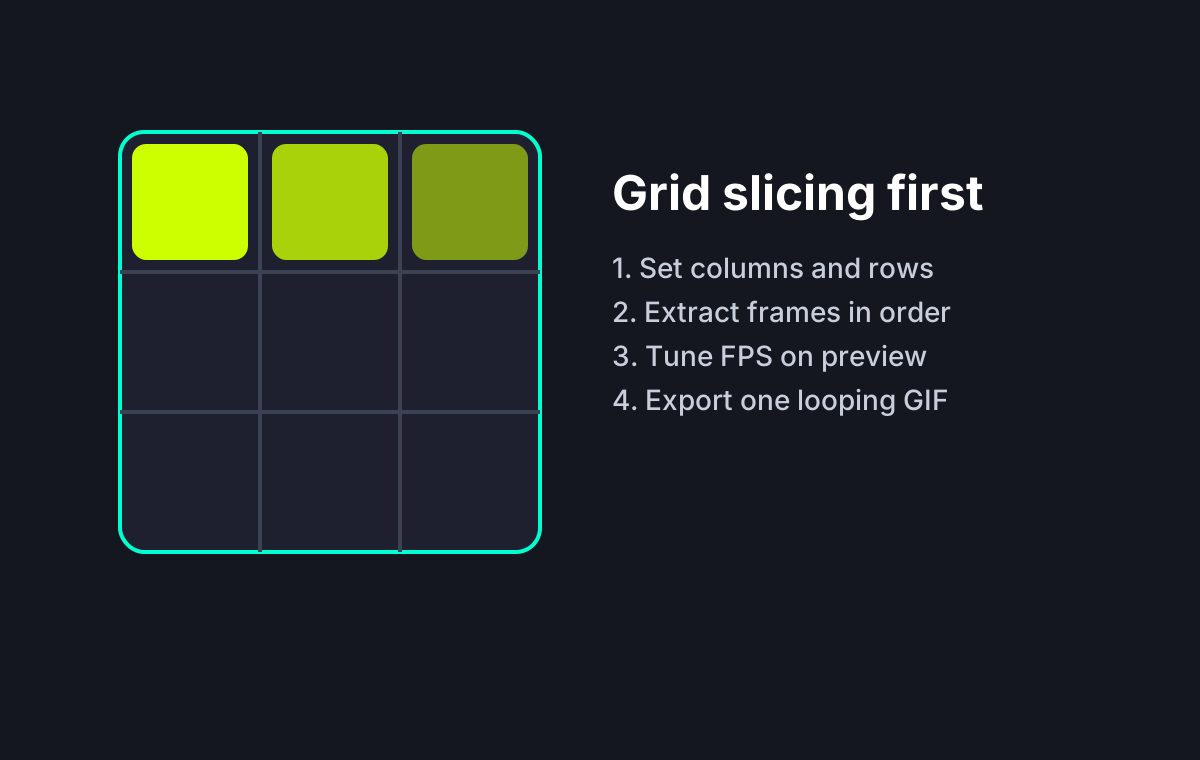
Grid Slicing Before GIF Export
Step-by-Step: Convert a Sprite Sheet to a GIF
Follow these four steps to turn any sprite sheet into an animated GIF. The entire process runs client-side — no upload to a server, no account required.
Step 1 — Upload Your Sprite Sheet
Open the Sprite Sheet to GIF converter and drag your PNG or WebP sprite sheet onto the upload area. The tool accepts any image size. For best results, use a sprite sheet with a transparent background and uniformly sized frames arranged in a grid.
Step 2 — Set Columns and Rows
Tell the tool how your sprite sheet is organized. Enter the number of columns (frames per row) and rows. The converter divides the image into equally sized cells based on these values. If your sheet is a single horizontal strip, set rows to 1.
Step 3 — Adjust FPS and Preview
Use the frame rate slider to control animation speed. 8-12 FPS works well for pixel art walk cycles, while smoother animations may need 24 FPS or higher. The real-time preview updates instantly so you can fine-tune the timing before exporting.
Step 4 — Export and Download the GIF
Once the preview looks right, click the export button to compile all frames into an animated GIF. The file is generated entirely in your browser using Web Workers and downloaded directly to your device. No data leaves your machine.
Tips for Better Sprite Sheet to GIF Conversions
Get cleaner, smaller, and more accurate GIF output by following these practical tips.
Use Transparent Backgrounds
GIFs support a single transparency index. If your sprite sheet has a transparent background, the exported GIF will preserve it. Avoid semi-transparent pixels — GIF does not support alpha gradients, so anti-aliased edges may show fringing against the transparent color.
Match FPS to Your Target Engine
If you plan to use the GIF as a reference for in-game timing, match the export FPS to your engine's logic rate. For example, set 10 FPS for a retro-style RPG Maker sprite or 30 FPS for a smooth Unity character controller.
Crop Before Converting
If your sprite sheet contains multiple animation sequences (idle, walk, attack) stacked vertically, crop to the specific row you want before uploading. This prevents unrelated frames from appearing in your GIF.
Keep Frame Dimensions Consistent
The converter divides the image into equal cells. If your frames have inconsistent sizes or the grid does not divide evenly, some frames may be clipped. Ensure your source sprite sheet uses a clean, uniform grid.
Know the GIF Output Limits
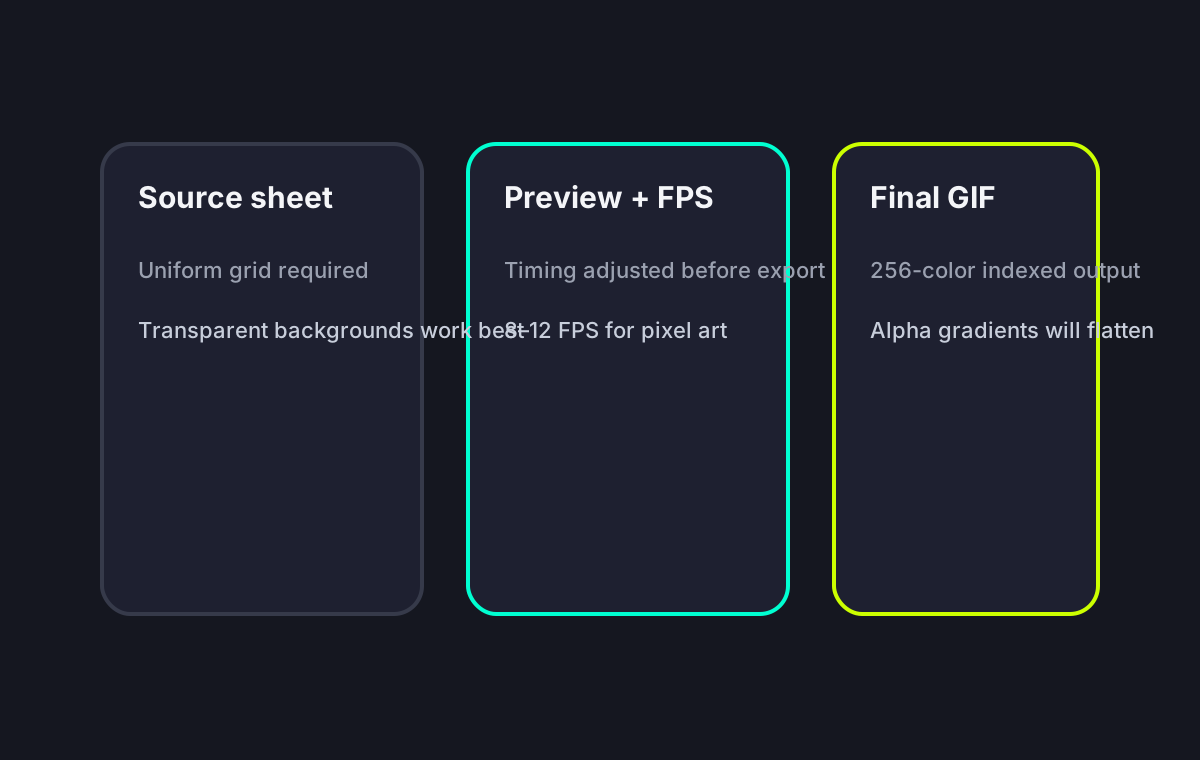
Specs & Limitations
Hard facts, not marketing claims.
Sprite Sheet to GIF — FAQ
Ready to Convert Your Sprite Sheet?
Open the free converter, upload your sprite sheet, and download an animated GIF in seconds.