
Fix Blurry Sprite Sheets
If your sprite sheet looks sharp in the image file but blurry in the game, the problem is usually not the export. It is usually texture filtering, mipmaps, compression, fractional scaling, or frame sampling. This guide gives you a cross-engine checklist for Unity, Godot, Phaser, and CSS so you can fix the runtime settings before repacking the same art again.
The 30-Second Diagnosis
Open the exported PNG directly in your browser or image viewer at 100 percent zoom. If it is sharp there, your sheet is fine and the blur is introduced after import. If it is already blurry in the file, the source frames were scaled, anti-aliased, or exported at the wrong size before packing. That distinction saves time: runtime blur is fixed in engine settings; source blur requires re-exporting the frames.
Sharp PNG, blurry in engine
Check filter mode, mipmaps, compression, camera scale, and pixel snapping. Do not repack until those settings are verified.
Blurry PNG before import
Re-export the source art at native resolution. Avoid resizing pixel art with bilinear interpolation before uploading it to a sprite sheet tool.
Blur Usually Happens After Export
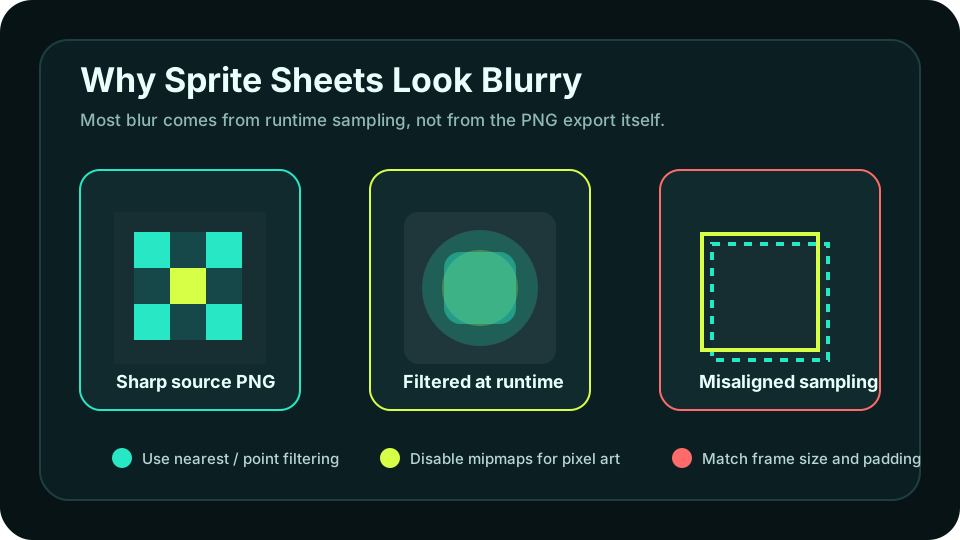
Five Common Root Causes
Blurry sprites usually come from one of five places. Work through them in this order because the first two solve most pixel-art cases without changing the sprite sheet image.
Linear or bilinear filtering
The engine blends neighboring pixels when the sprite is scaled or moved. For pixel art, switch to nearest, point, or pixel-art filtering.
Mipmaps on small 2D art
Mipmaps create downscaled versions of the texture. That is useful for 3D distance rendering, but it can soften pixel sprites and UI atlases.
Texture compression
Lossy texture compression can smear hard pixel edges and add color artifacts. Disable compression for crisp pixel art or UI sheets.
Fractional scaling or camera movement
Rendering a 16x16 sprite at 23.5 pixels or moving the camera by subpixels forces sampling between texels. Use integer scale and pixel snapping where possible.
Frame padding and bleeding
When frames are too close, the renderer can sample pixels from a neighboring frame. Add padding or extrusion if your engine uses atlases with filtering enabled.
Engine Settings to Check First
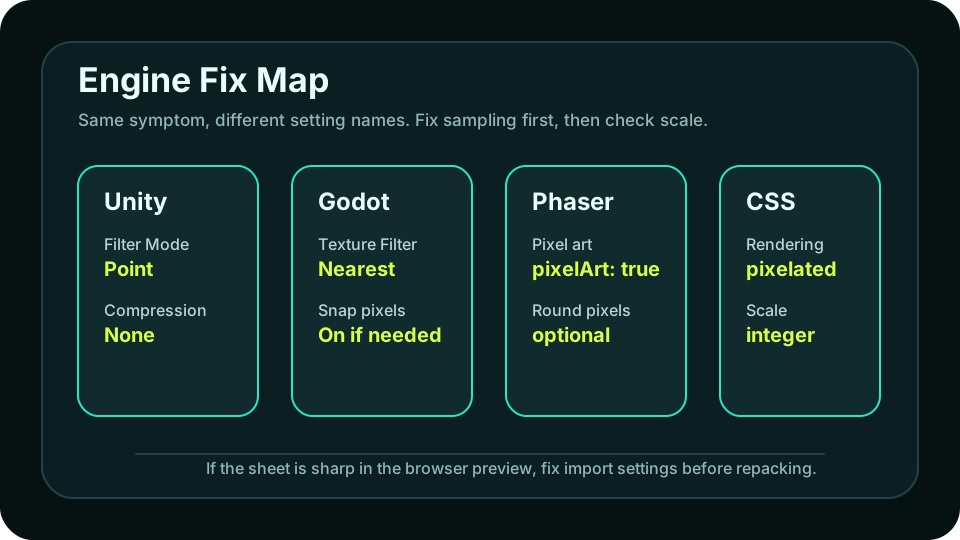
Unity: Set Point Filtering and Disable Compression
In Unity, select the imported sprite sheet texture and check the Inspector. For pixel art, set Filter Mode to Point, Compression to None, and consider disabling Generate Mip Maps for 2D sprites. If the sprite still looks soft, check your camera and canvas scaling. Pixel Perfect Camera or integer scaling can prevent subpixel sampling when the camera moves.
Texture import
Filter Mode: Point. Compression: None. Max Size: high enough for the original sheet. Mip Maps: off for typical 2D pixel art.
Scene rendering
Use integer scaling or Pixel Perfect Camera if sprites shimmer or blur while moving even after import settings are correct.
Godot: Use Nearest Texture Filtering
In Godot 4, blurry pixel art is usually caused by the default canvas texture filter or project-level import settings. Set the texture filter to Nearest for the sprite, canvas item, or project default. If sprites still look unstable, verify your scale values and try pixel snapping. Godot can render crisp sprite sheets, but it needs nearest sampling for low-resolution art.
Texture filter
Set CanvasItem texture filtering to Nearest, either per node or in project settings, especially for AnimatedSprite2D and Sprite2D pixel art.
Import and scale
Avoid non-integer node scale on pixel sprites. If the sprite sheet is uniform, also confirm hframes and vframes match the actual grid.
Phaser and CSS: Turn On Pixel Rendering
In Phaser 3, set pixelArt: true in the game config for pixel-art projects. That changes texture sampling so scaled sprites stay crisp. If you still see softness, check camera zoom, roundPixels, and whether the canvas itself is being scaled by CSS. For CSS sprites, use image-rendering: pixelated and keep background-size aligned with the real sheet dimensions.
Phaser 3
Use pixelArt: true, avoid fractional camera zoom, and consider roundPixels for moving sprites that shimmer on subpixels.
CSS sprites
Use image-rendering: pixelated on the element or sprite image. Keep width, height, and background-position values exact integers.
When Repacking Actually Helps
If filtering and scaling are correct but you still see edge artifacts, then repacking may help. Add padding between frames so the renderer has safe pixels around each rectangle. Keep all frame sizes consistent when the engine slices by rows and columns. If your engine supports trimming, make sure its metadata loader understands the trim fields you export. If it does not, use uniform frames instead of trimmed frames.
Add padding for atlases
Two to four pixels of padding can prevent neighboring frames from bleeding into the current frame during filtering or camera movement.
Keep grid math exact
If the sheet is sliced by frameWidth and frameHeight, every cell must match that size exactly. One off-by-one frame can make later frames look cropped or soft.
Blurry Sprite Sheet FAQ
Repack Only After Runtime Settings Are Correct
Use Sprite Sheet Maker to export clean PNG sheets and metadata, then apply the right filtering, scale, and padding settings in your engine for crisp playback.