
Fix Sprite Sheet Frames Offset or Cut Off
If a sprite animation jumps sideways, shows part of the next frame, or cuts off a limb, the sprite sheet is usually being sliced with the wrong cell math. This guide walks through frame width, spacing, padding, trimming, and engine import settings so you can decide whether to change the sheet, the metadata, or the runtime loader.
The Fast Alignment Check
Start by comparing one visible frame in the sheet to the exact frame size configured in your engine. If the sheet has 32x32 cells but the loader uses 31x32, every frame after the first column drifts. If the visible art is centered but the metadata has trim offsets, the frame can render in the wrong place even when the rectangle is correct.
Uniform grid problem
The same offset repeats every column or row. Check frameWidth, frameHeight, spacing, margin, hframes, and vframes before changing the artwork.
Trim metadata problem
The rectangle is correct but the sprite appears shifted during playback. Check spriteSourceSize, pivot, origin, and whether your engine understands trimmed frames.
Where Frame Offset Starts
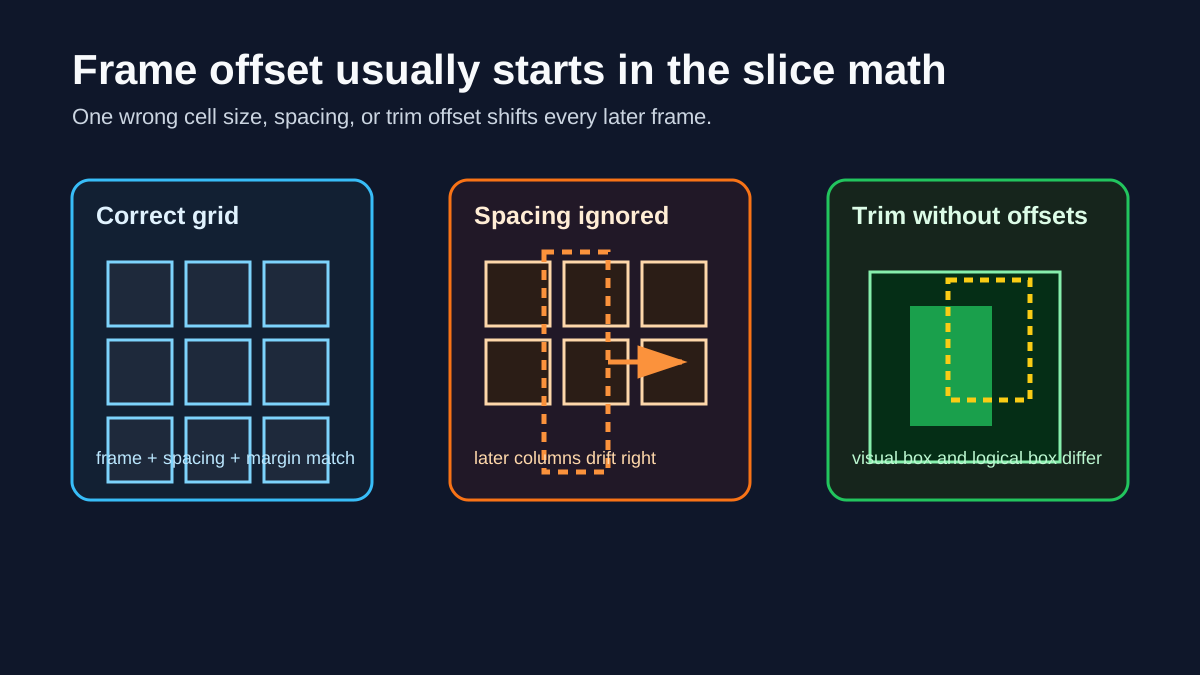
Five Root Causes of Offset Frames
Most frame offset issues come from a mismatch between the packed sheet and the loader assumptions. Work through the sheet geometry first, then check metadata and engine-specific import behavior.
Frame size mismatch
A loader configured for 32x32 frames cannot slice a sheet whose cells are 33x32 or whose last frame was exported smaller.
Spacing or margin ignored
If the sheet has gaps between frames, the formula must include them: x = col * (frameWidth + spacing) + margin.
Trimmed frames without trim metadata
Trimmed sprites save pixels, but the engine needs offset data to restore each frame to the same logical box.
Pivot or origin drift
Different origins make a character jump even if every source rectangle is correct. Keep origin and pivot values consistent.
Padding confused with spacing
Padding protects against texture bleeding. Spacing changes where the next cell begins. Mixing them up shifts slice coordinates.
Engine Import Settings Map
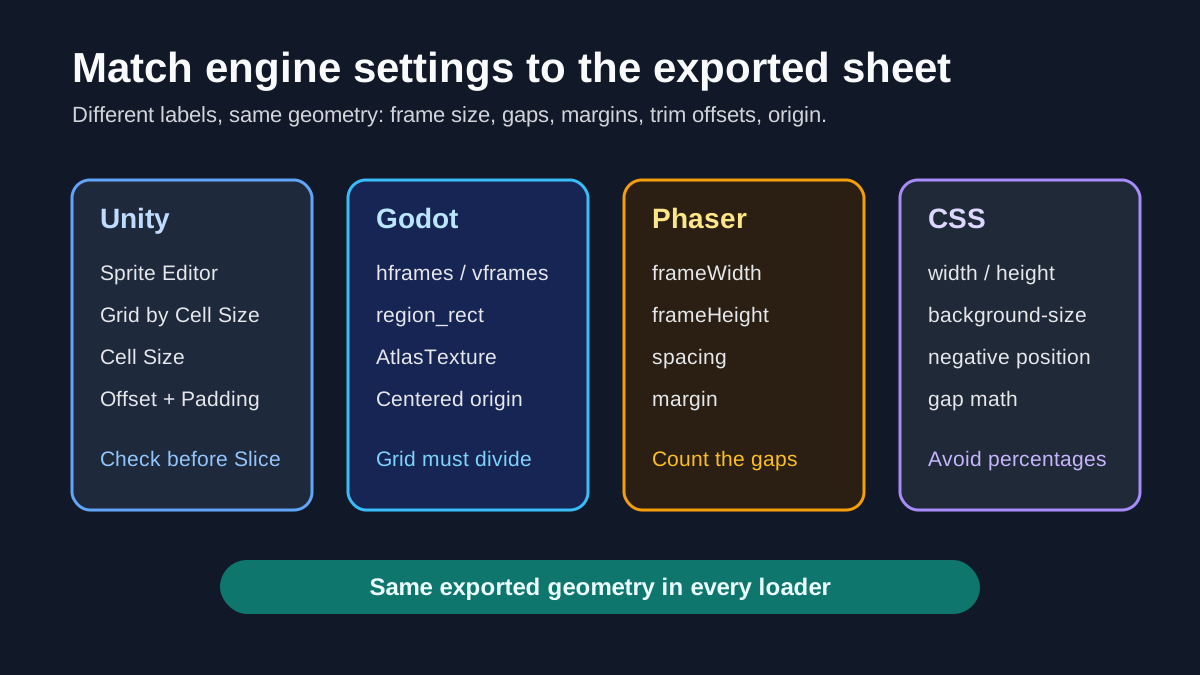
Engine Settings That Commonly Cause Frame Drift
Unity, Godot, Phaser, and CSS all use different labels for the same geometry. The important rule is that the importer must match the sheet: frame dimensions, gaps, margins, trim data, and origin must describe the actual exported PNG.
Unity Sprite Editor
Use Grid by Cell Size for uniform sheets. Confirm cell size, offset, and padding match the exported layout before slicing.
Godot hframes and vframes
For uniform grids, hframes and vframes must divide the sheet exactly. For atlas regions, verify each region_rect uses the right source rectangle.
Phaser frameWidth and spacing
Set frameWidth, frameHeight, spacing, and margin together. If spacing is missing, later frames will sample from the gap or neighbor frame.
CSS background-position
Use negative offsets and include gaps in the math. Avoid percentage background-position for fixed-size sprite sheets.
Use This Grid Formula Before Repacking
For a uniform sheet, the source rectangle should start at x = margin + col * (frameWidth + spacing) and y = margin + row * (frameHeight + spacing). If your engine has separate horizontal and vertical spacing fields, use each axis independently. When the formula does not land on the visual cell boundaries, fix the export settings or the import settings instead of nudging individual frames by hand.
Column coordinate
x = marginX + column * (frameWidth + spacingX). A missing spacingX value is the classic cause of rightward drift.
Row coordinate
y = marginY + row * (frameHeight + spacingY). A wrong spacingY value makes rows show the top or bottom of adjacent frames.
Logical frame box
For trimmed animation, every visual frame still needs the same logical box through spriteSourceSize, sourceSize, pivot, or origin metadata.
When to Repack the Sprite Sheet
Repack only when the exported sheet geometry is inconsistent or missing the data your engine needs. If every frame uses a uniform cell, use fixed frame dimensions and a small spacing value. If the art has uneven bounds, either disable trimming or export metadata that preserves trim offsets. Add padding or extrusion for edge bleeding, but do not use padding as a substitute for spacing.
Use uniform frames for simple loaders
CSS sprites, basic Phaser sheets, and Godot hframes/vframes are easiest when every cell has the same size.
Keep trim only with metadata support
Texture atlases can trim empty pixels safely only when the runtime reads the original source size and offset fields.
Separate padding from spacing
Spacing creates a measurable gap between cells. Padding or extrusion duplicates edge pixels to reduce sampling artifacts.
Frame Offset FAQ
Re-export With Consistent Frame Geometry
Use Sprite Sheet Maker to rebuild uniform grids or export metadata-driven atlases, then match those dimensions exactly in Unity, Godot, Phaser, or CSS.