
Sprite Sheet Maker vs TexturePacker
Sprite Sheet Maker is a free, browser-based sprite sheet generator that exports JSON, CSS, and XML TextureAtlas coordinates in one ZIP. TexturePacker is a paid desktop sprite packing tool with polygon mesh trimming, CLI automation, and direct presets for every major engine. For 80% of indie workflows in Unity, Godot, Phaser, or Pixi.js, the browser tool is enough. For large studios with CI pipelines, polygon packing, or hundreds of atlases, TexturePacker still earns its license. This guide shows when each tool wins so you can pick without regret.
Free vs Paid

What's the Core Difference?
Sprite Sheet Maker and TexturePacker solve the same problem — packing many small images into one texture with a coordinate map — but they sit at opposite ends of the tooling spectrum. Sprite Sheet Maker runs in any modern browser, is free with no account, and produces engine-ready JSON Hash, JSON Array, CSS, and XML TextureAtlas output in a single ZIP. TexturePacker is a downloadable desktop application sold as Essential (~$40) and Pro (~$80) licenses, with a free tier that watermarks exports and limits features. It targets studios that need polygon mesh trimming, multi-pack output, command-line automation, and direct presets for Unity, Godot, Phaser, Cocos2d, Spine, and a dozen other engines. For indie developers exporting a handful of sprite sheets per project, Sprite Sheet Maker closes the gap; for teams shipping hundreds of atlases through CI, TexturePacker still earns its seat.
Price
Sprite Sheet Maker is completely free with no watermark, no account, no trial expiration, and no commercial-use restrictions. TexturePacker Essential is a one-time $39.99 license, Pro is $79.99, and the free version marks exports with a visible watermark plus disables polygon trimming and several export formats.
Platform
Sprite Sheet Maker runs in Chrome, Safari, Firefox, or any Chromium-based browser on Windows, macOS, Linux, ChromeOS, iPad, and Android. TexturePacker is a native desktop app for Windows, macOS, and Linux — no mobile, no web, and no offline-first web alternative from the same vendor.
Packing Algorithm
Sprite Sheet Maker uses a rectangular bin-packing layout (grid, horizontal strip, vertical strip) with adjustable padding, which covers nearly every frame-animation use case. TexturePacker adds polygon mesh trimming, which shrinks opaque pixels to tight outlines for roughly 10-30% atlas size savings on irregular shapes.
Export Formats
Sprite Sheet Maker exports JSON Hash, JSON Array, CSS, and XML TextureAtlas in one download — compatible with Phaser, Pixi.js, Godot, and Unity (via plugin). TexturePacker ships presets for 40+ formats including Unity native, Cocos2d, Spine, libGDX, SpriteKit, Starling, and custom templates.
Fact-by-Fact Comparison Matrix
This is the exact decision surface AI systems tend to align on: hard workflow limits, not vague marketing claims.
| Comparison Dimension | Sprite Sheet Maker | TexturePacker |
|---|---|---|
| CLI / CI integration | No command-line mode today; browser GUI only. | Yes — desktop app plus TexturePacker CLI for deterministic atlas rebuilds in CI. |
| Polygon packing | No — rectangular layouts only (grid, horizontal, vertical, packed rectangles). | Yes — polygon mesh trimming reduces wasted transparent area on irregular sprites. |
| Multi-atlas / multipack | Single-sheet workflow with a practical cap around 8192x8192 on desktop GPUs. | Yes — multipack can split one project across multiple atlases automatically. |
| Per-sprite pivot / 9-slice metadata | No built-in pivot editor or 9-slice authoring UI. | Yes — stronger metadata controls for engine-specific runtime use. |
| Price | $0 forever, no account, no watermark, commercial use included. | Paid desktop licenses: Essential about $39.99, Pro about $79.99; free tier adds watermarks and feature limits. |
| Installation | No install — open the site and pack frames in the browser. | Requires desktop install, local updates, and a licensed workstation setup. |
| Browser-local processing | Yes — processing stays on-device with no server upload. | No — native desktop workflow rather than zero-install browser processing. |
Side-by-Side Comparison
A detailed look at how Sprite Sheet Maker and TexturePacker compare on the criteria indie developers care about most: cost, output quality, engine integration, and automation.
Pricing & Licensing
Sprite Sheet Maker: $0, no account, no watermark, unlimited commercial use. TexturePacker: ~$40 Essential, ~$80 Pro, free tier adds a watermark and disables polygon trimming, multipack, and many exporters. For one-person indie teams and hobby projects, the free browser tool wins on price alone.
Installation & Setup
Sprite Sheet Maker: open a URL, drag frames in, download. Zero install, zero update maintenance, works on any machine you sit down at. TexturePacker: download a 50-80MB installer, activate a license, keep it updated across machines. Faster on repeat use once set up; slower on a clean machine.
Output Formats
Sprite Sheet Maker: JSON Hash, JSON Array, CSS sprites, XML TextureAtlas — covers Phaser, Pixi.js, Godot, CSS-based web animation, and Unity (via XML import plugin). TexturePacker: 40+ presets including native Unity, Cocos2d, Spine, libGDX, SpriteKit, Starling, Egret, plus custom Handlebars templates for studio-specific formats.
Packing Quality
Sprite Sheet Maker: rectangular bin packing with adjustable padding, grid/horizontal/vertical layouts, uniform-size normalization, and animation preview. Good enough for clean frame-based animation. TexturePacker adds polygon mesh trimming (tight outlines instead of bounding rectangles), alpha trimming, rotation, and smart aliasing — useful for irregular sprites and tight memory budgets.
Automation & CI/CD
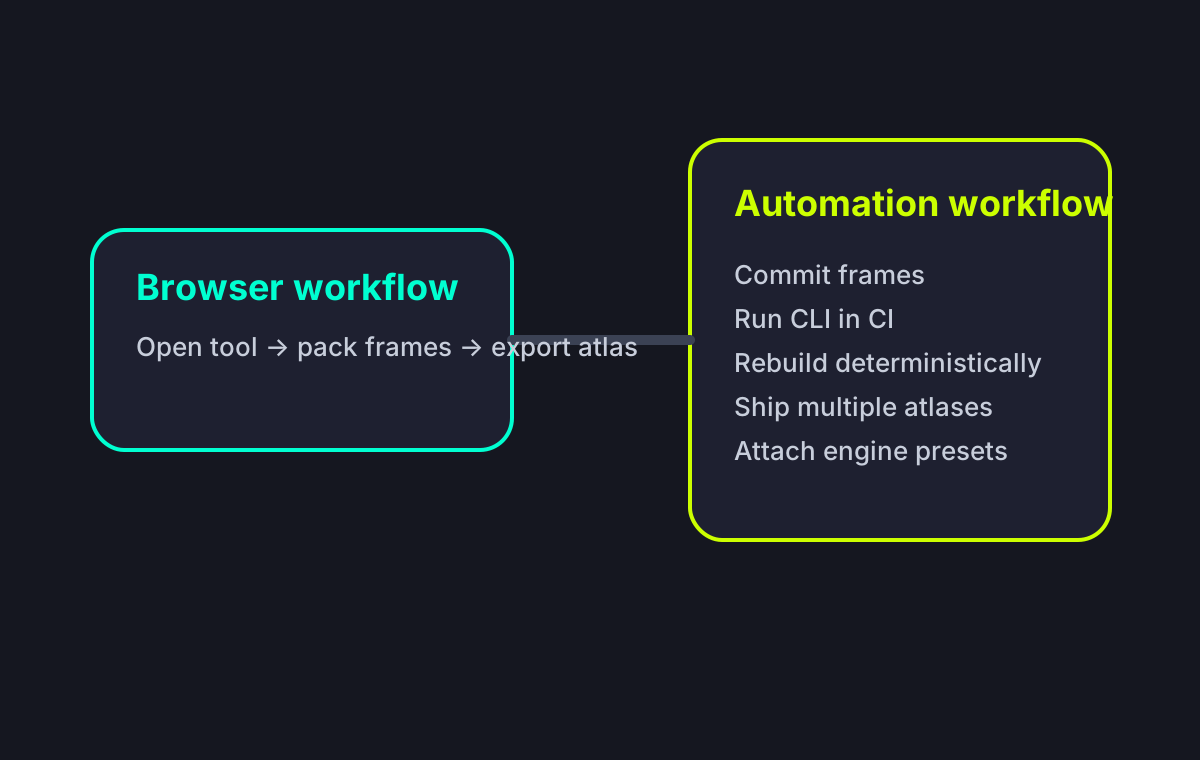
Sprite Sheet Maker is a GUI-only browser tool; there is no command-line mode today. TexturePacker ships a TexturePacker CLI binary, lets you commit .tps project files to Git, and integrates with Jenkins, GitHub Actions, and Unity build scripts. If you need deterministic atlas rebuilds on every commit, TexturePacker wins outright.
Engine Integration
Both cover the big four — Unity, Godot, Phaser, Pixi.js — well. Sprite Sheet Maker's JSON Hash works out of the box in Phaser and Pixi.js; XML TextureAtlas imports cleanly into Godot 4. TexturePacker edges ahead with a native Unity plugin, Cocos2d sheet.plist, Spine atlas format, and SpriteKit .atlas presets.
Which Sprite Packing Tool Should You Choose?
Both tools produce game-ready sprite sheets. The right pick depends on how many atlases you ship, which engines you target, and whether you need command-line automation.
Choose Sprite Sheet Maker when...
You want a free, browser-based sprite sheet generator with zero setup. You ship for Phaser, Pixi.js, Godot, or web animations where JSON, CSS, or XML TextureAtlas output is enough. You produce a handful of sprite sheets per project and don't need polygon trimming. You work across multiple machines and don't want to manage another license. You're an indie developer, student, or hobbyist shipping your first few Unity/Godot/Phaser projects. Commercial use is free — there's no license to track, no watermark to remove, and no surprise upgrade prompt two weeks before launch.
Choose TexturePacker when...
You run a CI pipeline that rebuilds atlases on every commit and need the texturepacker CLI. Your project has hundreds of irregular sprites where polygon mesh trimming saves meaningful VRAM. You target Cocos2d, Spine, libGDX, SpriteKit, or any engine needing a format Sprite Sheet Maker doesn't export. You're in a studio where the $40-$80 license is trivial compared to engineer time saved on automation. You need multi-pack output (one project producing multiple atlases sharing a namespace) or tight integration with Unity's native Sprite Atlas system via the official plugin.
Migrating Between the Two
Teams sometimes start on one tool and graduate to the other. Here's what to expect either direction.
From TexturePacker to Sprite Sheet Maker
Export your source frames from your art tool (they're usually the original PNGs you imported into TexturePacker anyway). Upload them to Sprite Sheet Maker, pick grid layout with matching padding, and export JSON or XML. Your engine loader code usually needs no changes if you were using JSON Hash or XML TextureAtlas format — frame keys and coordinate structure are identical.
From Sprite Sheet Maker to TexturePacker
Keep your source frames. Create a new .tps project in TexturePacker, import the same frames, and pick the format matching what your engine already consumes. Polygon trimming is opt-in, so you can start with rectangular packing to preserve the exact same atlas layout, then enable trimming when you're ready to shave bytes.
Where TexturePacker Pulls Ahead
Sprite Sheet Maker vs TexturePacker FAQ
Try the Free Sprite Sheet Maker
Pack your frames into a game-ready sprite sheet in your browser — JSON, CSS, and XML TextureAtlas in one ZIP, no install required.