
How to Make a Sprite Sheet for Godot
Create, import, and animate sprite sheets in Godot 4 with a PNG-first workflow. Use SpriteFrames for AnimatedSprite2D, Sprite2D regions with AnimationPlayer, or AtlasTexture resources. XML/JSON metadata can help only when your project adds a compatible importer or custom parser.
Drop images here (PNG, JPG, WebP, SVG)
or click to browse
The Godot Pipeline

Sprite Sheets in Godot 4
Godot offers multiple ways to work with sprite sheets. Choose the approach that best fits your project.
AnimatedSprite2D + SpriteFrames
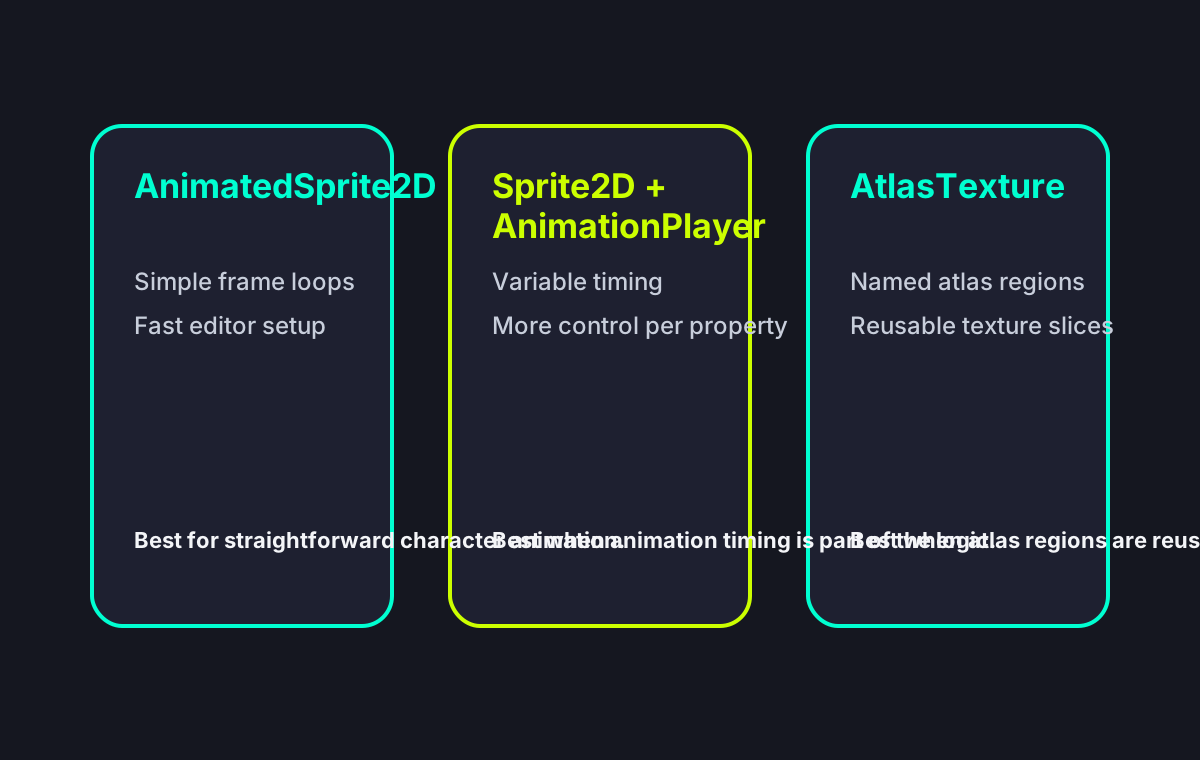
The simplest approach. Create a SpriteFrames resource, import your sprite sheet, define animations with frame ranges. Best for simple character animations and effects.
Sprite2D + AnimationPlayer
More powerful and flexible. Use Sprite2D with Region enabled to reference sprite sheet areas. AnimationPlayer keyframes the region_rect property. Best for complex animations with variable timing.
AtlasTexture Resource
Create AtlasTexture resources that reference regions of your sprite sheet. Combine with AnimatedSprite2D or use directly in code. Godot handles the UV mapping automatically.
XML/JSON metadata via plugin or script
Use exported XML or JSON only when you have an addon, import plugin, or GDScript parser that reads the coordinates. Godot does not turn generic TextureAtlas XML into SpriteFrames automatically.
Step-by-Step: Create & Import Sprite Sheets for Godot
Complete workflow from creating your sprite sheet to animating it in Godot 4.
Step 1: Export a Godot-friendly PNG sheet
Use a regular grid when possible, keep frame sizes consistent, add 1-2 px padding, and avoid trim or rotation if you plan to slice inside Godot. Export metadata only if your project has a reader for it.
Step 2: Import the PNG into Godot
Place the PNG in res://. Godot imports it as a Texture2D. For pixel art, set filtering to Nearest and disable mipmaps when they blur or bleed small sprites.
Step 3: Build SpriteFrames or regions
For AnimatedSprite2D, create a SpriteFrames resource and add frames from the sheet with the correct horizontal and vertical grid counts. For Sprite2D, enable Region and keyframe region_rect in AnimationPlayer.
Step 4: Test playback and coordinates
Name animations exactly as your GDScript calls them, set FPS above 0, enable Loop for idle or walk cycles, and verify every frame rectangle matches the sheet before changing code.
Which Godot Node Path Fits Your Project?
Specs & Limitations
Hard facts, not marketing claims.
Godot 4 Import Troubleshooting Checklist
When a Godot sprite sheet looks wrong, fix the import path before changing the art. Most issues come from empty SpriteFrames, wrong grid counts, filtering, missing padding, or expecting XML/JSON metadata to import without an addon.
Frames are inside SpriteFrames
Adding a texture to the node is not enough. Create or open the SpriteFrames resource and add each animation frame there.
Grid counts match the sheet
Set the real horizontal and vertical frame counts. A wrong count creates cropped, blank, repeated, or offset frames.
XML/JSON has a reader
If you exported XML or JSON, confirm a Godot addon, plugin, or custom GDScript parser is actually reading it. Otherwise use manual SpriteFrames or Sprite2D slicing.
Pixel art filter is Nearest
Blurry sprites usually mean linear filtering or mipmaps are still enabled. Set texture filtering to Nearest for pixel art and reimport the texture.
Padding prevents bleeding
If neighboring frames leak at runtime, export with 2 px padding or extrusion and avoid tight packed frames for scaled pixel-art playback.
Animation name, speed, and loop are valid
play("run") only works if the animation is named exactly run. FPS and speed_scale must be above 0, and Loop must be enabled for repeating animations.
Godot Sprite Sheet FAQ
Create Godot-Ready Sprite Sheets
Generate a clean PNG sprite sheet for Godot 4, then use SpriteFrames, Sprite2D regions, or AtlasTexture depending on your animation workflow.