
Sprite Sheet Export Format Guide
The sprite sheet itself is just a PNG. The metadata file tells a loader, importer, or custom script where each frame is located and what to call it. Pick the wrong format and you get coordinate mismatch, frame name errors, or extra parser work. This guide shows which format matches Phaser, PixiJS, Unity, Godot, and web animation workflows.
Why Format Matters
Most exports contain a PNG image plus a metadata file. Engines do not all read the same metadata structure. Phaser and PixiJS commonly consume TexturePacker-style JSON, CSS projects use background-position rules, while Unity and Godot often need native editor slicing, an addon, or a custom import step. The format choice should match the actual loader you plan to use.
Image file is universal
The PNG sprite sheet itself is the same regardless of export format. You get one high-quality image with all frames arranged in your chosen grid or smart layout.
Metadata determines compatibility
The companion file contains frame coordinates (x, y, width, height), frame names, and optional properties like trimmed or rotated. This is what differentiates formats.
Export Format Compatibility Map

JSON Hash Format
JSON Hash format uses frame names as object keys. This is the standard TexturePacker-style atlas structure used by Phaser 3 and commonly supported by PixiJS loaders because frame lookup starts from a named dictionary.
Structure
Each frame is stored as a top-level key in the JSON object. The value includes x, y position within the sprite sheet, width, height, and optional isTrimmed flag.
Best default for Phaser and PixiJS atlas loaders
Phaser 3 loads JSON Hash with this.load.atlas(...). PixiJS also works well with TexturePacker-style JSON Hash through its spritesheet loader or Assets pipeline. Use this when your runtime references frames by name.
Fast frame access
Hash format provides O(1) lookup by frame name. When your code knows the exact frame name (idle_0001, walk_left_0005), you access it directly without iterating through an array.
JSON Array Format
JSON Array format stores frames as a sequential list. It is useful for custom pipelines, converters, and animation code that wants stable order, but it should not be treated as the default PixiJS atlas format unless your parser expects that exact schema.
Structure
Frames are stored in an array under the frames key. Each array element contains the same rectangle data plus the filename string. Order matches your uploaded or generated frame sequence.
Best for ordered custom workflows
Choose JSON Array when your own importer walks frames by index, when you are transforming metadata, or when a specific engine plugin documents array input. For PixiJS/Phaser atlas loading, JSON Hash is usually the safer first choice.
Index-based access
While you can still use frame names, array format gives you predictable ordering. This helps when your game logic iterates through frames sequentially (animations with fixed step order).
XML TextureAtlas Format
XML TextureAtlas is a TexturePacker/Sparrow-style metadata format. It can be useful when a tool or addon explicitly supports it, but Unity and Godot do not automatically make every generic XML file into ready-to-use animation frames.
Structure
The XML root is TextureAtlas with an imagePath attribute. Each SubTexture has name, x, y, width, and height attributes, with optional frameX/frameY/frameWidth/frameHeight for trimmed source data.
Unity workflow
Unity usually starts from the PNG: set Sprite Mode to Multiple, slice in the Sprite Editor, or use Unity Sprite Atlas for packing. XML TextureAtlas needs a compatible third-party importer or custom editor script.
Godot workflow
Godot 4 works best from the PNG with SpriteFrames, Sprite2D regions, or AtlasTexture resources. XML/JSON coordinates only become useful through an addon, plugin, or custom GDScript parser.
Importer-dependent integration
Treat XML as a metadata interchange file, not as a universal native import. Before exporting XML, confirm that your engine version, plugin, or build pipeline documents TextureAtlas/SubTexture support.
CSS Sprites Format
CSS sprites format outputs a stylesheet with background-position rules for each frame. This is ideal for web animations, UI icons, and CSS-based games where you do not need a game engine at all.
Structure
The CSS file defines a class for each frame name with background-image set to your sprite sheet URL and background-position set to the correct pixel offset. Negative values shift the background image left or up.
Best for web animations
Use CSS sprites for hover states, button animations, or simple character animations in pure web projects. Add the class to an element, then toggle or animate background-position with CSS transitions.
No JavaScript required
Basic sprite playback works with only HTML and CSS. You do not need to load a sprite sheet via JavaScript or parse JSON. Just apply the frame class and optionally animate position.
Format Selection Workflow
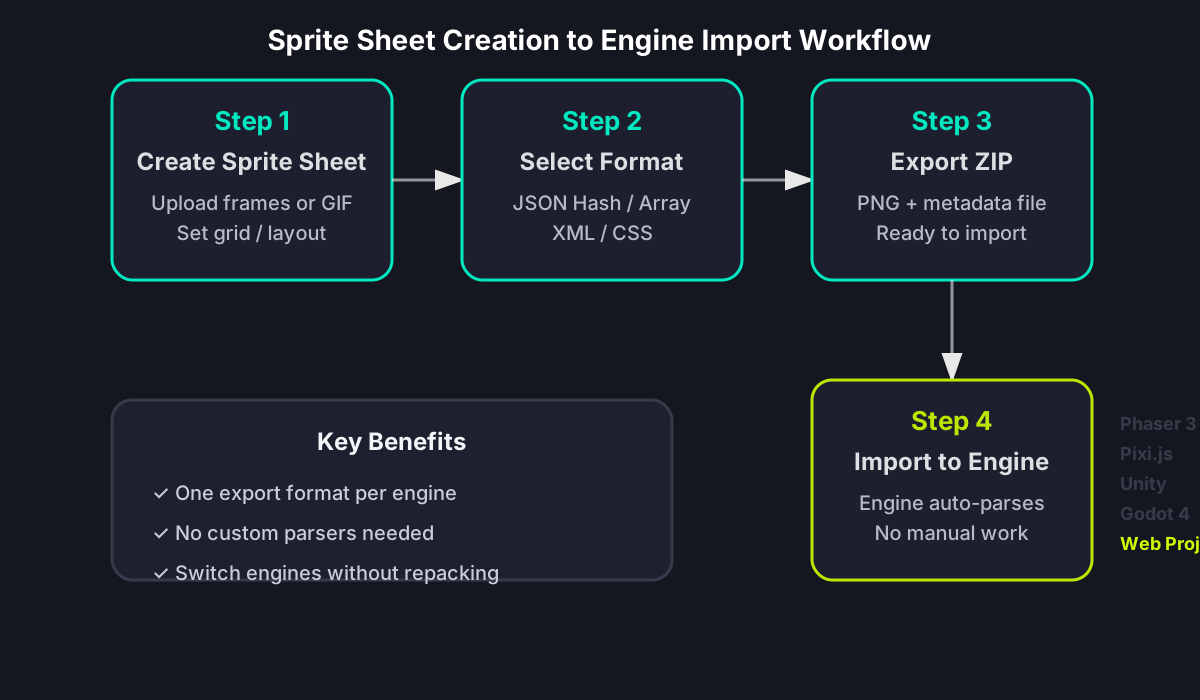
Common Format Problems
Most sprite sheet import errors are format mismatches. Your engine expects one structure but you exported another. These are the warning signs and fixes.
Frame name not found error
This happens when your code references frame walk_left_0001 but JSON uses walkLeft0001. Check your exported metadata file and update frame name in code or regenerate sprite sheet with correct naming convention.
Coordinates do not match visual
If your sprite appears offset or cropped, you may have exported JSON but loaded it as XML (or vice versa) in an engine that defaults to a different parser. Ensure your import code matches the export format.
Animations play wrong frames
When frames play out of order, the export format may not preserve your intended sequence. Check if your engine expects hash format where order is not guaranteed, then switch to array format if your game relies on sequential frame access.
Engine cannot load metadata
If Unity or Godot cannot load metadata, the issue is usually importer support, not the PNG. Use native slicing/SpriteFrames first, or add the documented XML/JSON importer that your project depends on.
Sprite Sheet Export Format FAQ
Export in the Right Format
Create your sprite sheet once in Sprite Sheet Maker. Select the format that matches your actual loader or importer, then use the troubleshooting links when coordinates, frame names, or engine slicing do not line up.